
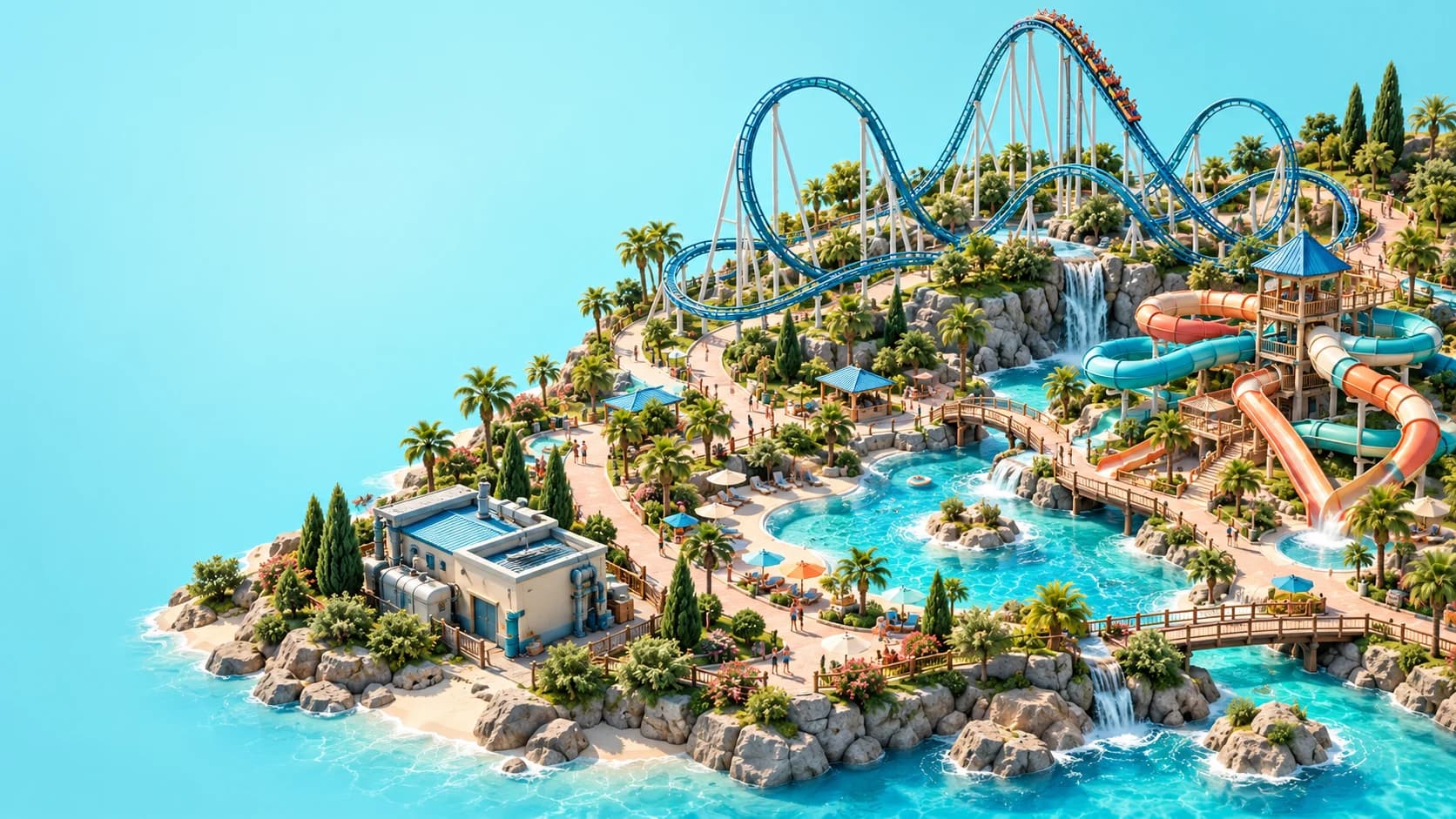
Save Planet Coaster 2 blueprints by selecting the objects you want to reuse, confirming the selection and choosing Save As Blueprint. To share or find player creations, use the Frontier Workshop, where uploads and subscriptions are managed through a Frontier account. A reusable blueprint, an uploaded whole park and a park that friends take turns editing are different ways to share work.
This guide follows official material reviewed on October 26, 2026. It does not supply invented sharecodes or claim that particular player uploads have been tested. Use the menu labels and controls shown by your current platform, and inspect a creation's details before making it part of a larger project.
01
Decide what you want to reuse
A blueprint can contain a collection of objects, scenery, rides, paths or pools. That makes it useful for repeating a chosen design without treating the entire park as the reusable unit. Start by deciding whether you need a small piece of a project, a complete arrangement or the whole park itself.
Our editorial recommendation is to make that decision before selecting objects. A clear boundary makes it easier to inspect what belongs in the blueprint and describe it accurately later. It also reduces confusion when another player expects a particular element to be included because the title or description suggests it is.
02
Inspect your selection before saving
Use the game's multi-selection tools to collect the desired elements, then confirm the selection. Check the chosen objects rather than assuming that everything visible nearby is included. An attractive area on screen and the actual set selected for saving are not necessarily the same thing.
For example, you might want a themed entrance arrangement rather than every neighbouring building and path. Inspect the selection from useful angles and confirm that it matches that intention. This is an editorial checking habit, not a claim that one keyboard shortcut or selection method behaves identically on every platform.
03
Save the blueprint with a useful name
Choose Save As Blueprint and provide the name, description and browser category requested by the game. Describe the content you actually selected, using a name you can recognise among your other creations. The category should help you find the item again rather than act as a substitute for checking its contents.
A practical description explains the intended use without promising features you have not verified. If the design is only a section of a larger project, say so. Avoid presenting a decorative example as a fully working attraction unless you have checked the complete operating arrangement yourself.
04
Keep saving and uploading separate
Saving a reusable selection and uploading it for other people are separate steps. Frontier's blueprint guide describes My Workshop as the place to upload a blueprint, with a public or private choice as part of that process. You need a Frontier account to use the Workshop's online features.
Before uploading, review the blueprint's name, description and intended visibility. Our recommendation is to check the selected visibility deliberately rather than assume that a saved local creation has already become a public upload. After uploading, inspect My Uploads to find the item and confirm what the game presents there.
05
Find creations in the Frontier Workshop
Use the Frontier Workshop to browse shared creations or search with a sharecode supplied for an actual item. A sharecode identifies shared content; it is not a reward redemption code or a promise of free paid content. This guide provides no sample code because an invented example could be mistaken for a working download.
When choosing a creation, read the available details before subscribing. Confirm that you are looking at the item you intended to find, especially when similar names are used by different creators. Keep the description of the uploaded content separate from assumptions about how it will function in your particular park.
06
Subscribe and use the Workshop source filter
Frontier documents subscribing as the way to download a selected Workshop creation. Once subscribed, use the building browser's source filter for Frontier Workshop to locate the relevant content. That filter matters when you are searching among several sources of building items and saved work.
If you cannot find an expected item, our suggested first check is whether you subscribed to the intended creation and are looking at the correct source in the browser. Then inspect the current account and item information shown by the game. Do not follow an unrelated manual download path or move files based on instructions meant for another sharing system.
07
Manage subscriptions without confusing them with uploads
My Subscriptions manages creations you have subscribed to, while My Uploads concerns your uploaded work. Unsubscribing removes the subscription. Keep those roles clear when you are trying to find something you downloaded rather than something you created and published yourself.
Before changing a subscription, identify which creation you are managing and what you intend to do with it. The retrieved documentation does not establish every consequence for already placed objects, so this guide does not promise that unsubscribing will remove or preserve every element of an existing park. Check the current game feedback before treating subscription management as a park-editing tool.
08
Check a placed creation as part of your park
A blueprint is a reusable design, not proof that every operating dependency is satisfied in a new location. Our recommendation is to inspect the selected creation in the context of the park receiving it. A functioning attraction still needs the relevant access, service and staff checks for its actual situation.
Use the paths and queues guide to review guest connections and the power and water guide to inspect utilities. For a coaster, review the coaster building guide before opening it. Those checks are more useful than assuming that a successful placement confirms complete operation.
09
Distinguish a blueprint from a whole park
Frontier also documents uploading whole Sandbox parks through My Parks. Choose that workflow when the park itself is what you want to share, rather than a selected reusable collection. A blueprint and a whole park therefore answer different needs even though both may appear in discussions about sharing creations.
Collaborative park editing is another distinction: shared Sandbox and Franchise work is asynchronous, with players taking turns rather than building simultaneously. Read the multiplayer guide before organising that kind of project. Downloading a blueprint should not be described as joining a live cooperative construction session.
10
Respect version and content boundaries
The official FAQ says that Planet Coaster 1 saves, parks and blueprints cannot be transferred into Planet Coaster 2. An older creation for the first game is therefore not interchangeable with a sequel blueprint merely because the names look similar. Check the game associated with the content before spending time trying to import it.
The sharing system described here is the Frontier Workshop, rather than the Steam Workshop or a workflow for installing executable mods. This guide does not guarantee DLC ownership or research compatibility for any particular upload; inspect the selected item and the current game requirements. Start with a clearly identified creation, verify it in your park and keep the distinction between finding, subscribing, placing and operating it visible.