
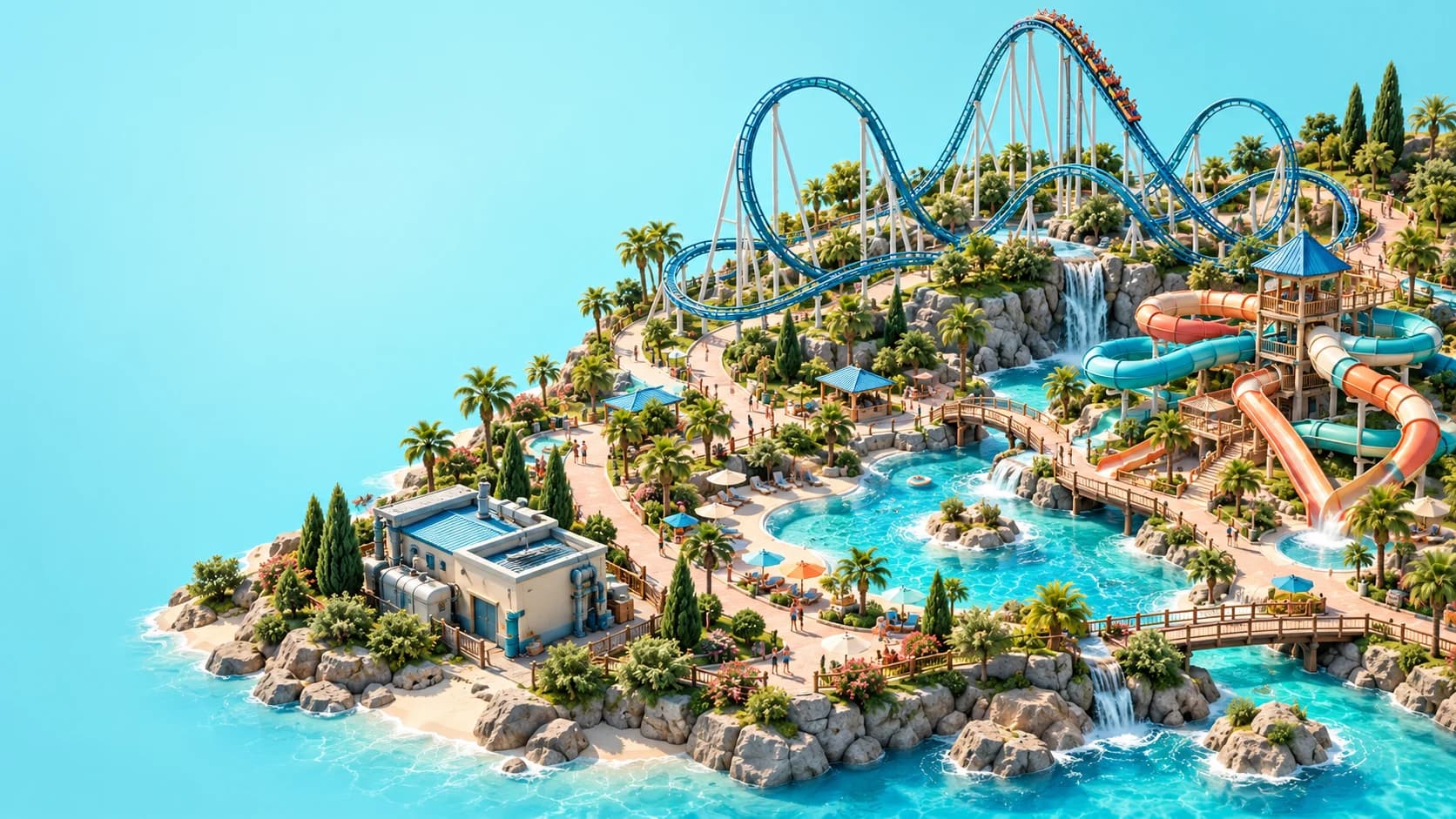
Yes, Planet Coaster 2 supports multiplayer collaboration, but shared park editing is asynchronous: players build one at a time. Friends can take turns working on shared Sandbox and Franchise parks across supported platforms. That is different from a simultaneous cooperative editor where everyone places scenery together. Frontier Workshop sharing is another feature: it distributes parks and blueprints rather than making every subscriber a collaborator in the same editable park.
This guide follows official sharing, quickstart and blueprint documentation checked on October 26, 2026. The suggested handover and troubleshooting habits are editorial advice, not a claim that we tested a live multiplayer session. Begin by agreeing which sharing workflow your group wants, because that choice explains many apparent multiplayer problems.
01
Understand what taking turns means
The official quickstart describes shared building as one player at a time in Sandbox and Franchise. One person works on the park, saves their changes and passes the updated park to the next participant. Your friends contribute to the same project over successive sessions rather than editing the map alongside you in real time.
That arrangement can still suit a group with different interests. One participant might build a coaster, another decorate it, and another organise the surrounding services. Our recommendation is to divide work into clear tasks so the next person knows what is complete and what still needs attention.
02
Choose Sandbox or Franchise deliberately
Shared Sandbox parks fit a project where the group wants to create a particular theme park together. Franchise adds an online management context, with connected parks and opportunities to collaborate or compete through challenges and leaderboards. Choose the mode according to the kind of project you want before inviting friends into a half-finished plan.
Do not assume that a Career scenario automatically becomes a shared multiplayer project because the game has online features. The retrieved quickstart specifically identifies Sandbox and Franchise for shared building. If you are learning the basic tools before working with others, the beginner guide helps establish a manageable first park.
03
Sign in before arranging access
Frontier's quickstart says an account and login are needed for the game's online features. Follow the account prompts and open the relevant mode before trying to exchange park or Franchise codes. Our practical suggestion is for everyone to confirm they can reach that online feature independently before the group schedules a longer building session.
Keep account credentials private and share only the access information intended for the collaboration. A park or Franchise code serves a different purpose from a blueprint sharecode found in the Workshop. If a friend cannot find the project, first confirm that both people are using the same mode and the same kind of code.
04
Treat cross-platform sharing precisely
The official FAQ identifies cross-platform park collaboration and Workshop sharing between PC, PlayStation 5 and Xbox Series X|S. That lets participants contribute from different supported systems without changing the one-at-a-time nature of editing. It does not establish that every platform offers identical account menus or controls.
Cross-platform sharing also does not, by itself, establish cross-buy, personal save transfer or a particular console subscription policy. Check the current requirements displayed by your platform provider if an online-access prompt appears. This guide does not assign a subscription tier or promise that owning one edition grants a second platform's licence.
05
Set up Franchise membership for the group
The official sharing deep dive describes naming a Franchise, applying tags and choosing its membership approach. A Franchise can use invitations or allow other players to request to join. Those are Franchise settings, so do not treat them as a universal description of every shared Sandbox menu.
The Franchise Management menu includes the member list, join requests, activity log and settings. Review those controls when organising a private group, and make sure the intended collaborators can identify the correct Franchise. Our editorial advice is to agree a recognisable project name before exchanging access details, particularly if members are already involved in several parks.
06
Make each handover understandable
Frontier's deep dive demonstrates saving a Franchise park, adding change notes and uploading it so another participant can continue. Use those notes to describe what changed and which work remains unfinished. A short, concrete handover is more useful than assuming the next builder will notice every change in a large park.
For example, explain that the coaster layout is ready for decoration but its surrounding paths still need attention. The next participant can then use the coaster building guide or paths and queues guide for the relevant task. This is a suggested way to coordinate the project, not an official requirement to divide work into those categories.
07
Review versions before undoing someone else's work
The Franchise deep dive documents version control between saved park versions and the ability to return to an earlier one. Inspect the available versions and their change notes before deciding that a recent addition should be reversed. A rollback can be useful, but choosing the wrong point can also discard changes the group intended to keep.
Our recommendation is to agree on a checkpoint before a major redesign and to record what that checkpoint contains. Keep an additional written handover if your group needs a clearer project history than the notes currently provide. Do not assume the same version controls or recovery options appear identically in every mode, platform or local save workflow.
08
Separate Workshop downloads from collaboration
The Frontier Workshop lets players publish and download blueprints or whole parks. The official Blueprints guide describes subscribing to a creation, then finding it through the Frontier Workshop source filter in the building browser. That is a content-sharing workflow, rather than an invitation to take the next editing turn in the creator's ongoing project.
Likewise, uploading a Sandbox park for others to explore is different from sharing access with collaborators who will continue building it. Decide whether you want to distribute a finished creation or organise another person's next turn before choosing a menu. The blueprints guide covers creating, uploading and finding reusable creations.
09
Diagnose the mismatch before rebuilding the project
If multiplayer does not behave as expected, begin with the expectation itself. Confirm whether you wanted simultaneous editing, a turn in a shared park, a Franchise membership or a Workshop download. Each is a different question, and the absence of a real-time building session is consistent with the documented asynchronous design.
Next, inspect login status, mode, project identity and the sharing information exchanged between participants. If you are passing a Franchise park, check that the intended latest version and its change notes are available before the next person continues. Record any actual error message for official support instead of repeatedly creating replacement parks without understanding the problem.
10
Leave a working park for the next builder
A useful final check is to distinguish the new construction from the systems it needs. If your turn added a water area, leave notes about unfinished access, utilities or staffing rather than presenting the section as fully operational. The pools and flumes guide and power and water guide help identify those dependencies.
For a management-focused group, agree which expenses or unfinished services the next participant should review. The money and prestige guide provides context for that conversation. Clear scope, a saved handover and realistic expectations about turn-taking make it easier to continue the same park without misunderstanding what multiplayer is supposed to provide.